How Do I Type 1000 Words in WhatsApp? 5 Fast Methods & Character Limits
Need to type 1000 words in WhatsApp quickly without typos or finger fatigue? Discover the 65,536-character limit, voice typing, text repeaters, and desktop tricks.
Have you ever needed to compose an extensive message on WhatsApp—such as a detailed project update, an official society announcement, an emotionally sincere letter, a long story, or a fun repetitive celebration—and wondered: How do I type 1,000 words in WhatsApp without spending an hour tapping on a tiny mobile keyboard?
Typing 1,000 words manually on a smartphone screen requires approximately 5,000 to 7,000 keystrokes. On average mobile typing speeds (around 30 to 40 words per minute), that takes 25 to 35 minutes of uninterrupted thumb typing, leading to typos, autocorrect blunders, and finger cramps.
Furthermore, many users worry about platform limits: Can WhatsApp even hold 1,000 words in a single message? Will it crash the chat or get cut off?
In this comprehensive guide, we will answer all your questions about WhatsApp’s message capacity, explain the mathematical relationship between words and character limits, and walk you through the 5 fastest and easiest methods to type or paste 1,000 words in WhatsApp in seconds.
Does WhatsApp Allow 1,000 Words in a Single Message?
Before learning the fastest typing techniques, let’s establish the technical rules: Can you send 1,000 words in WhatsApp?
The answer is an emphatic YES. In fact, WhatsApp supports far more than 1,000 words in a single message bubble!
The 65,536-Character Limit Explained
WhatsApp does not measure messages in terms of words; it measures them in characters (including letters, numbers, spaces, punctuation, and Unicode emojis).
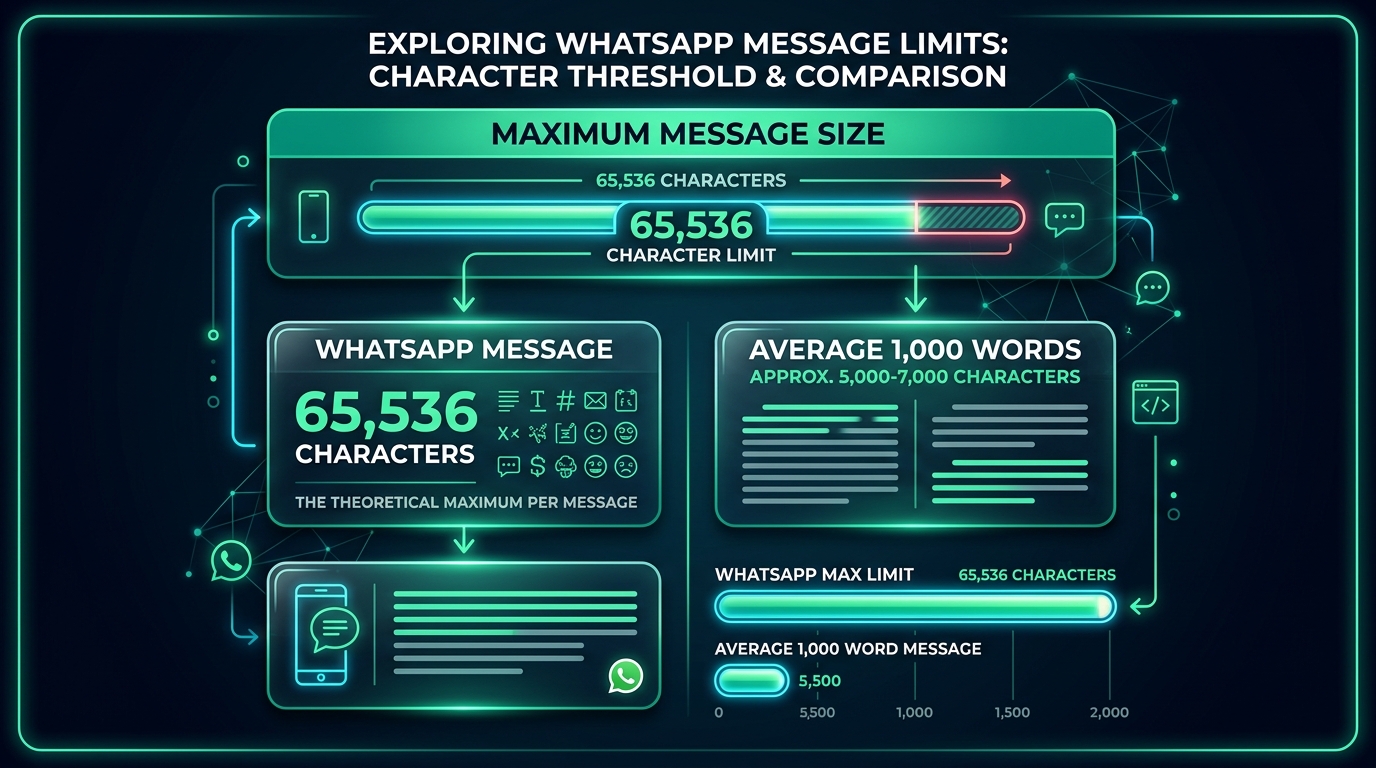
According to WhatsApp’s official communication protocols, the maximum message size ceiling for a single text bubble is 65,536 characters (representing 64 KB of text buffer).
The Math: Words vs. Characters
- The average English word contains 5 letters plus 1 space = approximately 6 characters per word.
- A typical 1,000-word message equates to approximately 5,500 to 7,000 characters.
- Comparing 7,000 characters to WhatsApp’s 65,536-character limit shows that a 1,000-word message utilizes less than 11% of WhatsApp’s maximum message capacity!
- In fact, WhatsApp can theoretically hold roughly 9,000 to 12,000 words in a single text bubble before reaching its absolute ceiling.
To see how browser engines and chat apps handle massive repeated texts, check out our companion benchmark article on can text repeater repeat text up to 10,000 times?.
Method 1: The Instant Way — Use an Online Text Repeater (Under 5 Seconds)
If your 1,000-word message is repetitive—such as repeating "Happy Birthday! 🎂", sending a playful apology ("I am so sorry 🥺"), an energetic sports cheer ("GOAL! ⚽"), or a humorous message for friends—typing it out manually is a huge waste of time.
Using our free Text Repeater online tool, you can generate and paste 1,000 words into WhatsApp in less than five seconds!

Step-by-Step Instructions:
- Open TextRepeaterOnline.in on your phone or computer.
- Enter the phrase or words you want to duplicate in the “Text to repeat” field.
- In the repetition count box, enter your target count (e.g.,
1000or choose presets like100or500). - Select your formatting preference:
- New Line: Stacks each repeat vertically to create a long scrolling wall.
- Same Line (Space): Compacts the words into a single dense paragraph block.
- Numbered List: Adds numbers (
1.,2.,3.) before each repeat.
- Tap Repeat Text.
- Tap the WhatsApp button or the Copy button.
- Open your desired WhatsApp chat and tap Paste → Send!
For a full step-by-step walkthrough of formatting options, read our guide on how to use text repeater.
Method 2: Voice Typing & Speech-to-Text Dictation (3 to 4 Minutes)
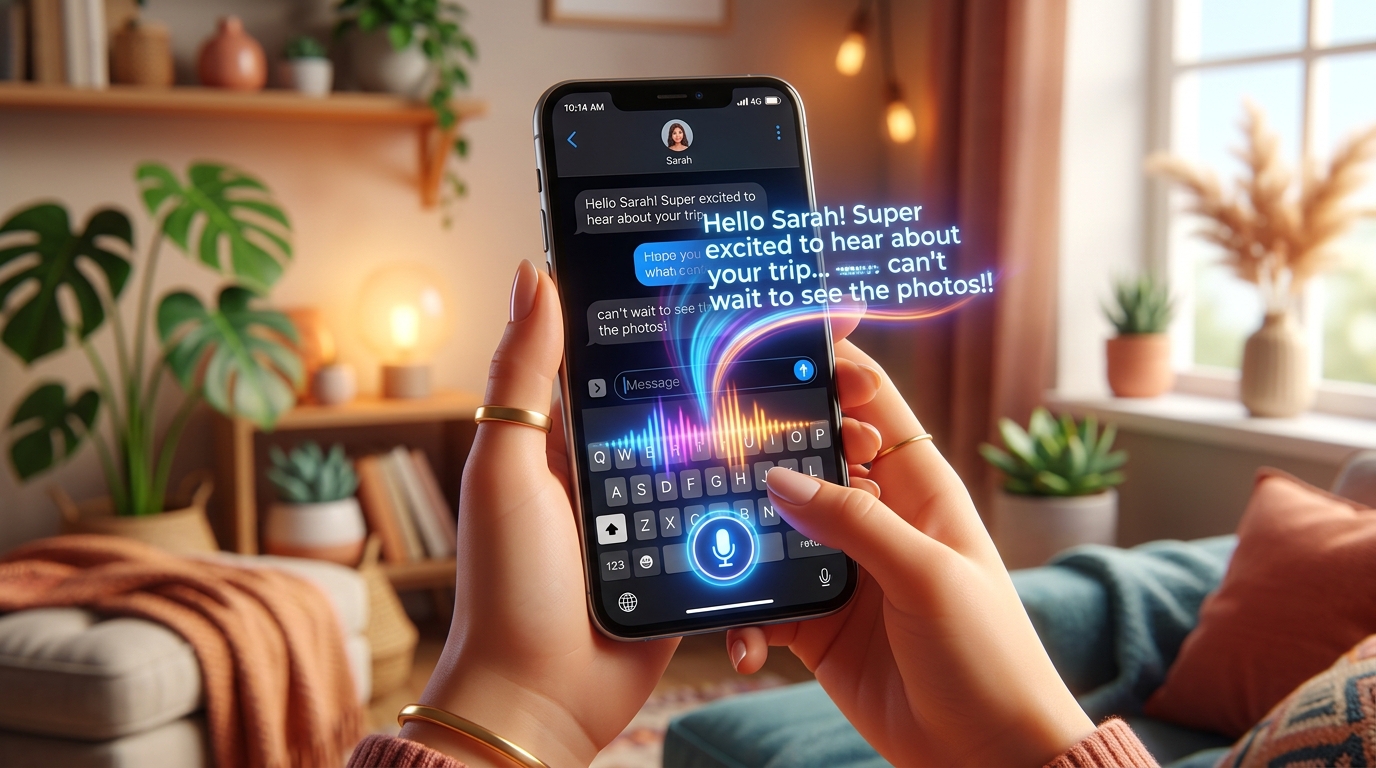
If your 1,000-word message is a unique, narrative message (such as a personal story, an update, or an essay), the fastest way to type on a smartphone is voice dictation.
Both Android and iPhone keyboards feature advanced speech-to-text models that can transcribe normal human speech at roughly 130 to 160 words per minute. That means you can “type” 1,000 words simply by speaking naturally for 6 to 8 minutes!
On Android (Using Google Gboard):
- Open WhatsApp and tap into the message input field.
- Look at the top-right of your Gboard keyboard for the Microphone icon (do not confuse this with WhatsApp’s green voice note mic).
- Tap the keyboard microphone.
- Speak clearly at a conversational pace.
- Use punctuation commands aloud:
- Say
"Period"or"Full stop"to insert. - Say
"Comma"to insert, - Say
"New line"or"New paragraph"to create line breaks.
- Say
- When finished, review the transcript for minor speech errors, then hit Send.
On iPhone (iOS Dictation):
- In WhatsApp, tap the message field to bring up the iOS keyboard.
- Tap the Microphone icon in the lower right corner of the keyboard (next to the spacebar).
- Dictate your thoughts naturally. iOS automatically adds basic punctuation in modern iOS versions.
- Tap the keyboard button to stop dictation and review.
Method 3: WhatsApp Web or Desktop App (Physical Keyboard)
Typing on a glass touch screen is fundamentally slower than typing on a full-sized physical computer keyboard. While average mobile typing speed is around 35 words per minute, average desktop typing speed is 60 to 80 words per minute, allowing you to finish 1,000 words in 12 to 15 minutes with far fewer typos.
How to Connect:
- Open web.whatsapp.com or download the WhatsApp Desktop application on your Windows PC or Mac.
- On your mobile phone, open WhatsApp, tap Settings (or the three dots menu on Android), and select Linked Devices.
- Tap Link a Device and scan the QR code displayed on your computer monitor.
- Your chats will synchronize instantly.
- Type your 1,000-word message using your physical keyboard.
- Important Keyboard Shortcut: To add paragraph breaks without accidentally sending the message prematurely, press
Shift + Enterinstead of justEnter!
Method 4: Draft in an External Notes App, Then Copy & Paste
Writing a 1,000-word message directly in the WhatsApp input field can be risky. If your phone receives an incoming call, if WhatsApp accidentally reloads in memory, or if you accidentally swipe back, your unsaved draft could be lost.
A much safer and more comfortable workflow is:
- Open your device’s native note-taking app (such as Google Keep, Apple Notes, Microsoft OneNote, or Notion).
- Write or draft your message at your own pace. These apps feature automatic cloud saving, spell-checking, and word count counters.
- Review and polish your text.
- Select all (
Ctrl + Aor long-press and “Select All”), tap Copy. - Switch to WhatsApp, tap into the input box, select Paste, and tap the green Send arrow.
Method 5: Mobile Keyboard Text Replacement Shortcuts
If you frequently send long standardized templates—such as terms and conditions, onboarding instructions, apartment directions, or client consultation scripts—you can set up Text Expansion Shortcuts.
Text expansion allows you to type a short trigger keyword (e.g., !intro1000 or !rules), and your keyboard will automatically replace it with your pre-saved 1,000-word template!
Setting Up on Android (Gboard):
- Go to Settings → System → Languages & input → Keyboard → Gboard.
- Tap Dictionary → Personal dictionary → select your language.
- Tap the + (Add) button.
- In the upper box, paste your complete long text block.
- In the Shortcut field, assign a short abbreviation (e.g.,
longmsg). - Now, whenever you type
longmsgin WhatsApp, the full text will appear on your prediction strip for 1-tap insertion!
Setting Up on iPhone (iOS):
- Go to Settings → General → Keyboard → Text Replacement.
- Tap + in the top right.
- In Phrase, paste your long text.
- In Shortcut, type a short code like
msg1k. - Tap Save.
How to Format 1,000 Words in WhatsApp for Clean Readability
A giant unbroken wall of 1,000 continuous words looks intimidating and difficult to read. WhatsApp supports native markdown-style formatting to help you structure long messages cleanly:
| Formatting Effect | WhatsApp Syntax | Example Result |
|---|---|---|
| Bold | *text* |
text |
| Italic | _text_ |
text |
~text~ |
||
Monospace |
```text``` |
text |
| Bulleted List | - Item or * Item |
• Item |
| Numbered List | 1. Item |
1. Item |
| Quote Block | > text |
▎text |
Best Formatting Tips for Long Messages:
- Break into Short Paragraphs: Keep paragraphs to 3 to 4 sentences maximum.
- Use Clear Subheadings: Bold your section headings (e.g.,
*1. Project Scope*) to allow readers to scan easily. - Use Bullet Points: Convert lists of items into clean bulleted points for quick comprehension.
- Utilize Spacing: Add double line breaks between distinct thoughts.
How WhatsApp Displays Long 1,000-Word Messages
When you hit send on a 1,000-word message, WhatsApp does not stretch the message bubble over ten screen heights. Instead:
- WhatsApp automatically displays the first few lines (roughly 400 to 600 characters).
- At the bottom of the visible snippet, WhatsApp displays a subtle blue link: “… Read more”.
- When your recipient taps “… Read more”, the entire message smoothly expands to its full length.
- If you want to use this behavior creatively for jokes or punchlines, check out our guide on 10 fun WhatsApp text repeater tricks.
Comparison of the 5 Methods
| Method | Speed for 1000 Words | Effort Level | Typo Rate | Best Used For |
|---|---|---|---|---|
| Text Repeater Tool | < 5 seconds | Ultra-Low (1 click) | 0% (Exact replica) | Repetitive phrases, emojis, apologies, celebrations |
| Voice Dictation | 3 to 5 minutes | Low (Speaking) | Low to Medium | Original stories, conversational updates, thoughts |
| WhatsApp Web / Desktop | 12 to 15 minutes | Medium | Very Low | Formal documents, business emails, structured reports |
| External Notes App | 15 to 20 minutes | Medium | Very Low | Complex drafts, sensitive contracts, multi-step work |
| Text Expansion Shortcut | 1 second | Zero (Once set up) | 0% | Frequently used standard templates and scripts |
Frequently Asked Questions (FAQ)
What is the maximum word limit for a WhatsApp message?
WhatsApp does not have an official word limit; instead, it enforces a 65,536-character limit per single message. That equals roughly 9,000 to 12,000 typical English words, meaning 1,000 words easily fits inside a single message bubble.
Can I repeat the same word 1,000 times in WhatsApp?
Yes. The fastest and easiest way is using our free Text Repeater online tool. Simply type the word, set the count to 1000, click Repeat, and tap the WhatsApp button to send it immediately.
Will sending 1,000 words freeze or crash WhatsApp?
No. 1,000 words consumes only around 6 KB of text data, which is effortlessly handled by WhatsApp on any modern Android, iPhone, or PC. WhatsApp will automatically collapse the message with a "Read More" button to maintain smooth scrolling.
Can I send blank spaces to create empty 1,000-word messages?
Standard spaces cannot be sent empty on WhatsApp because the send button stays disabled. However, using special Unicode invisible characters, you can generate endless blank messages. Learn how in our guide on sending blank messages on WhatsApp.
How do I add line breaks in WhatsApp Web without sending the message?
When typing in WhatsApp Web or WhatsApp Desktop on a computer, press Shift + Enter to create a new line. Pressing Enter alone will immediately send the message.
Is voice typing available on all smartphones?
Yes. Both Google Gboard on Android and Apple Dictation on iOS include built-in voice-to-text microphones on the virtual keyboard that work seamlessly with WhatsApp.
Ready to Generate Repeated Text for WhatsApp?
Whether you need to type 1,000 words for an announcement, generate an energetic cheer wall, or craft an unforgettable joke for your friend group, our free Text Repeater Tool makes it instant and effortless.
Try it now: select your words, pick your count, and copy your text with one single click!
Want to repeat text right now?
Use our fast online tool to duplicate any word or emoji up to 50,000 times with instant 1-tap copy!
More Helpful Guides & Articles
Can Text Repeater Repeat Text Up to 10,000 Times? Performance, Limits & Guide
Can an online text repeater duplicate text 10,000 times without freezing your browser? Discover performance benchmarks, memory limits, and WhatsApp paste rules.
Discord Text Repeater: How to Repeat Messages, ASCII Art & Hype Chants (Gaming & Server Guide)
Master the Discord Text Repeater: duplicate hype chants, ASCII announcement banners, and emojis within Discord's 2,000 and 4,000 character limits safely.